Web GUI
An optional local web app that runs the same model as the pyfds-evac
command (run.py) behind a form: pick a scenario, set the options, run it,
watch the progress, and look at the results. It is for exploring a scenario;
for studies, scripts and the command line are easier to reproduce. To turn
a GUI run into a script, see Show the run as Python.
For a terminal or an SSH session, see Terminal UI.
Install and launch
Install the gui extra and start the GUI from the folder that contains
assets/ (see Where the GUI reads and writes):
pip install "pyfds-evac[gui]"
pyfds-evac-gui
Then open http://127.0.0.1:5001. The extra installs FastHTML and its dependencies. On a screen narrower than 900 px, such as a phone, the form sits above the results instead of beside them.
pyfds-evac-gui listens on 127.0.0.1, so only this computer can open it.
--host 0.0.0.0 makes it reachable from other computers on the network, with
a warning that says so, and --port sets the port (default: the PORT
environment variable, else 5001).
Without the extra, the command stops with:
pyfds-evac-gui needs the GUI extra, which is not installed (missing module 'fasthtml'). Install it with: pip install 'pyfds-evac[gui]'In a source checkout, install the
extra with uv and start the GUI with app.py:
uv sync --extra gui
uv run app.py
uv run app.py listens on 127.0.0.1, port 5001, and reloads when the code
changes; it takes --host and --port like pyfds-evac-gui.
uv run pyfds-evac-gui also works in a checkout: it does not reload.
Where the GUI reads and writes
| Folder | Installed with pip | Source checkout |
|---|---|---|
| Scenarios in the picker | ./assets | <checkout>/assets |
| Uploaded scenarios | ./uploads | <checkout>/uploads |
| Results | ./results | <checkout>/results |
./ is the folder in which pyfds-evac-gui starts. In a checkout, the
folders sit in the checkout whatever folder the server starts in. The
environment variable PYFDS_EVAC_RESULTS_DIR overrides the results folder in
both cases. Nothing is written into the installed package.
The package ships no scenarios, so after a pip install the picker is empty
until there is an assets/ folder. Unpack the example zip of a page, for
example the Quickstart, and start the GUI inside the
unpacked folder:
cd pyfds-evac-quickstart
pyfds-evac-gui
The picker then lists ISO-table21. You can also upload a scenario (its
config JSON and geometry WKT, or a .zip) in the Core group; it is saved
under ./uploads. To make one, see
Create a scenario. The fire examples ship the FDS deck only; run FDS yourself
before the GUI has smoke to read.
Run a scenario
The steps use iso_table21_coupled, a scenario tracked in the repository
together with its FDS output, so they need a
source checkout. One agent walks a
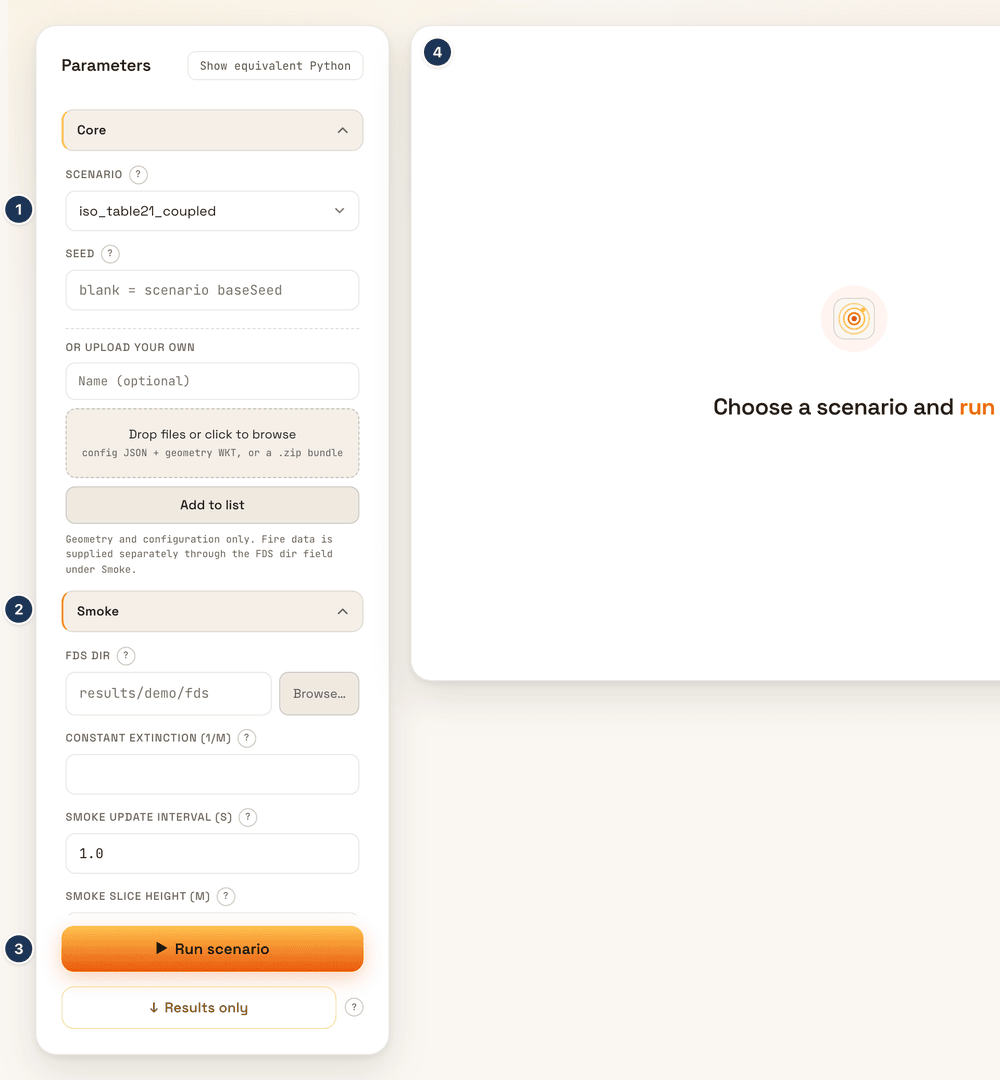
100 m corridor filled with smoke of about K = 1 1/m. The numbered markers in
the first screenshot show where each control is. Click a screenshot to open
it at full size.
Pick a scenario
In Core, choose iso_table21_coupled in the scenario picker (1). Leave
the seed blank to use the scenario’s own baseSeed. To use your own
scenario, drop its config JSON and geometry WKT, or a .zip bundle, on the
upload box and click Add to list. To make one, see
Create a scenario.
Set the options
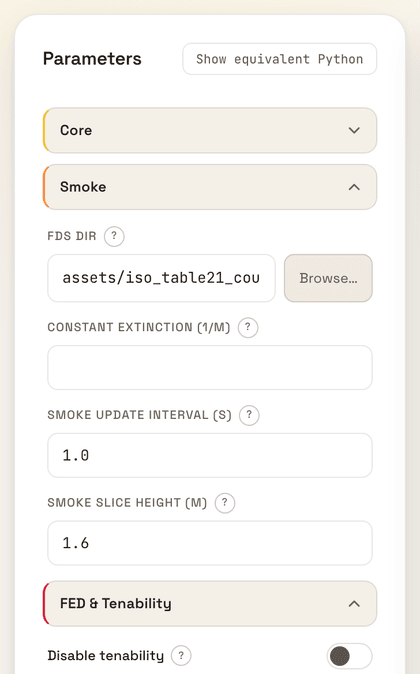
Open Smoke (2) and enter assets/iso_table21_coupled/fds in FDS dir,
or pick the folder with Browse…. Leave the other fields at their
defaults. Every run.py option has a field, and labels show the unit where
the value has one, for example Smoke slice height (m). Press ? next
to a field to read its help text. The groups and their fields are listed
under The form.
Run it
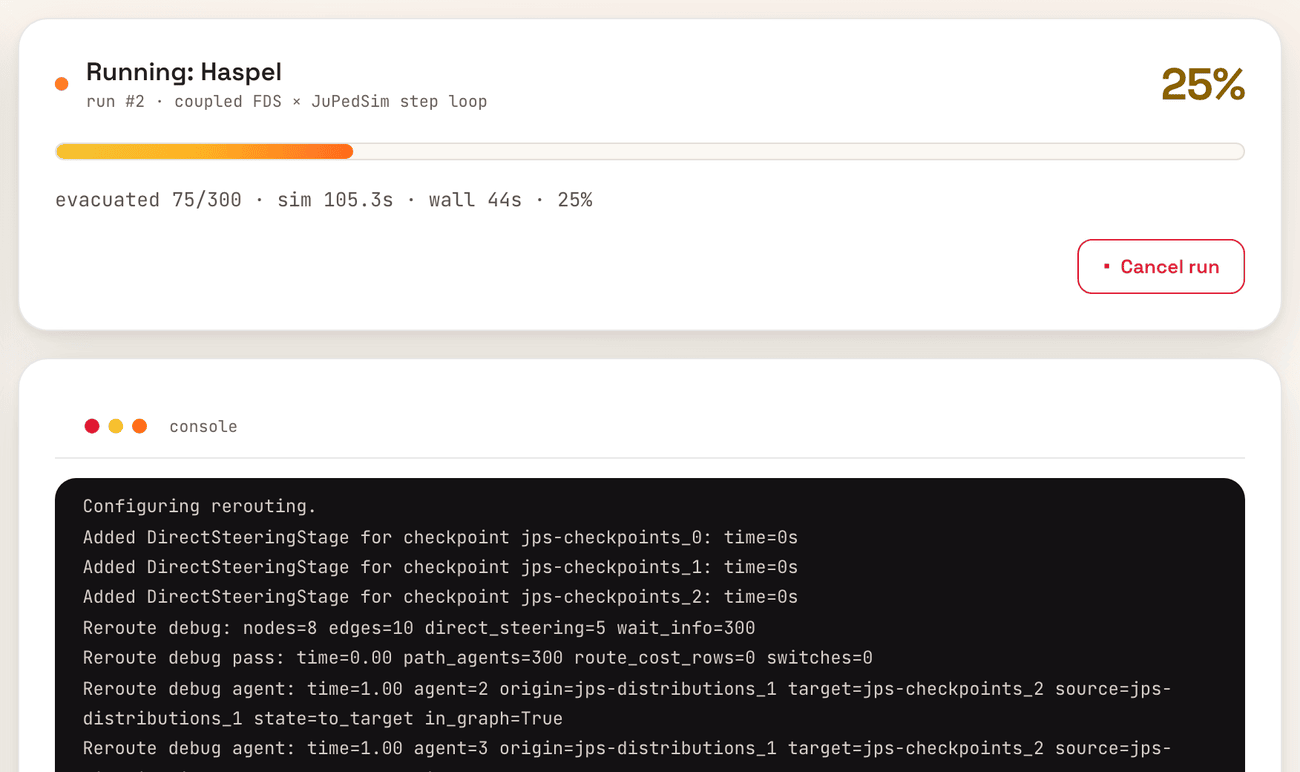
Click Run scenario (3). The results area (4) turns into a progress card and a console with the model’s log. The card names the scenario and the run number and shows “evacuated e of t planned”, where t counts every planned agent, flow agents included, then the simulated time, the wall-clock time and the percent done. While flow agents are still to enter, “not spawned m” follows. Cancel run stops the run at its next step.
If a value is invalid, the run does not start. An alert above the results
area says “The run was not started.” with the error, and your settings and
any results already shown are kept. The field is named in the message when
the error comes from that field’s value, for example Seed: …; otherwise
the message is shown as it is, with the exception type under
Technical details.
Look at the results
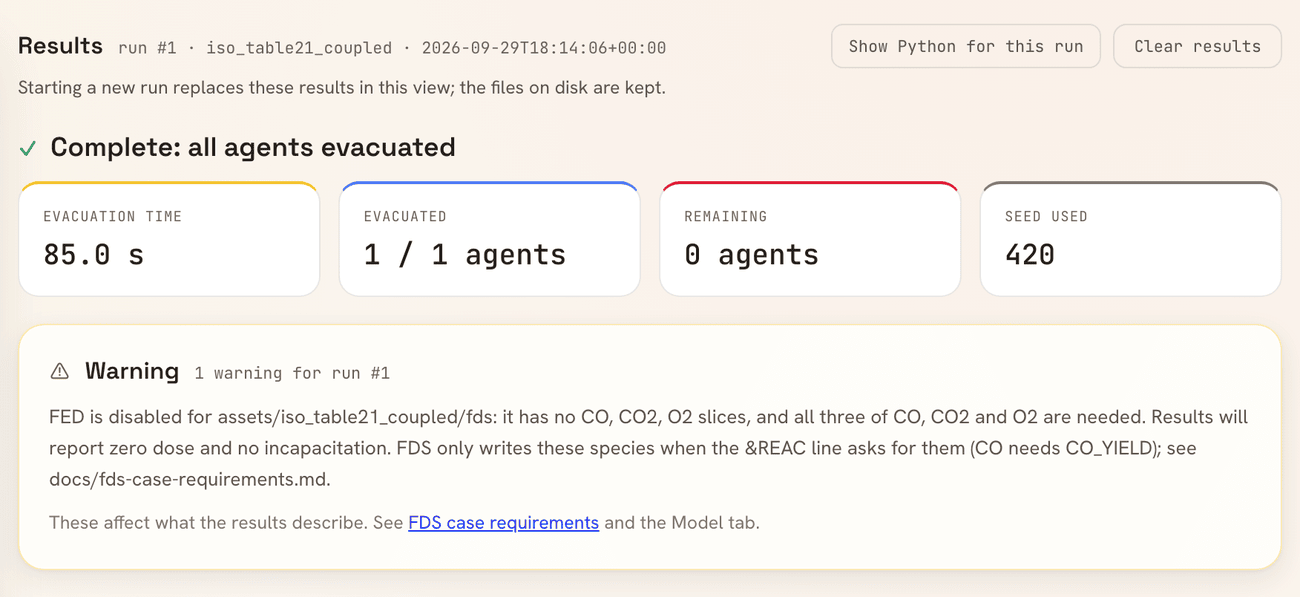
When the run ends, the results replace the progress card. A header names the run (Results, the run number, scenario and start time) and holds Show Python for this run and Clear results. Below it, the outcome is stated in words, “Complete: all agents evacuated” here, followed by tiles for the evacuation time, agents evacuated, agents remaining, agents incapacitated and the seed used, and any warnings from the run.
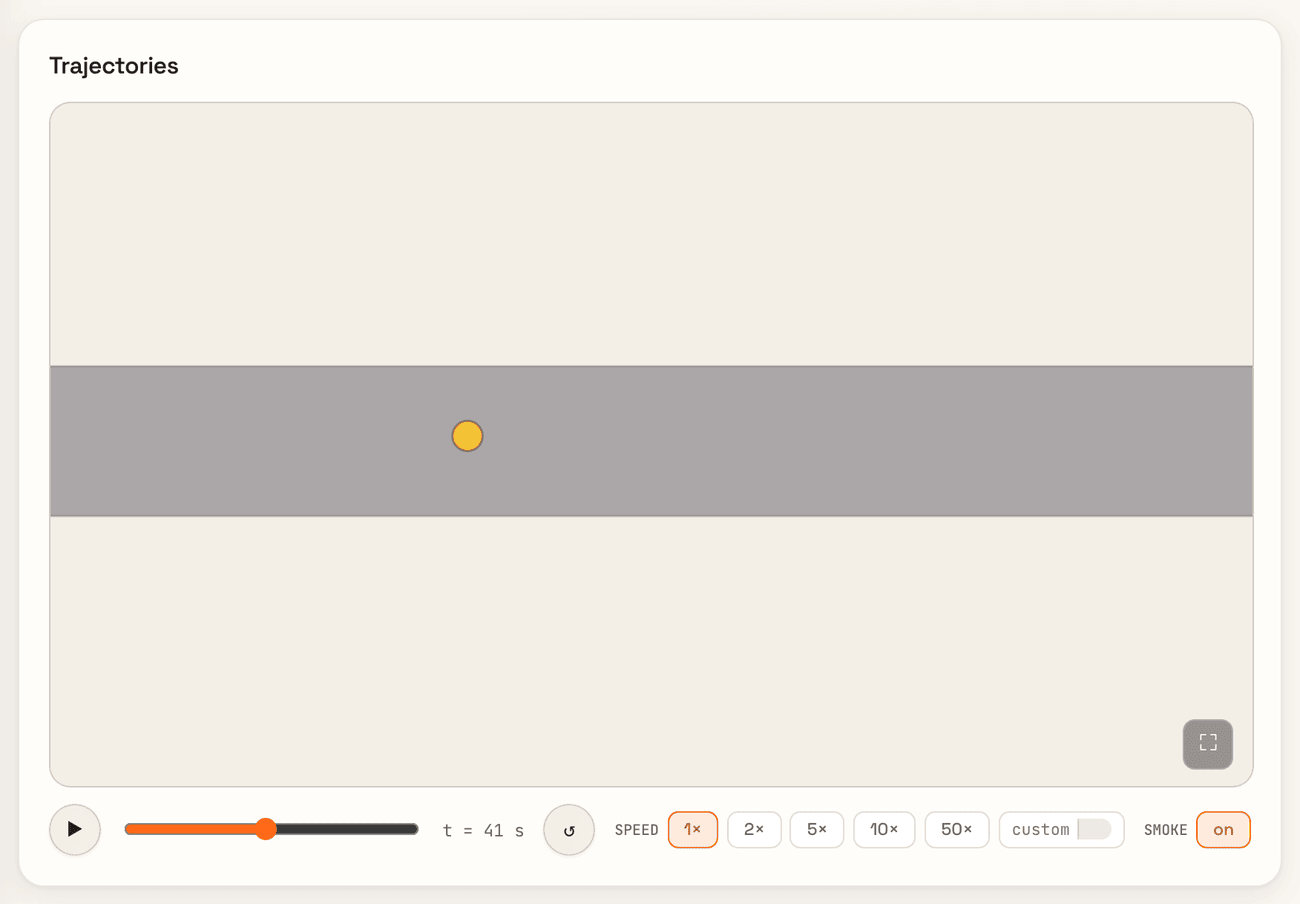
Further down, press play in Trajectories to replay the run, or drag the time slider. Scroll over the plan to zoom and drag to pan; ↺ resets the view. With an FDS folder set, the smoke layer is drawn under the agents: the horizontal extinction slice nearest the run’s smoke slice height, picked by the rule the engine samples by (see Selecting a slice height). Smoke layer switches the layer on and off.
Cells are shaded in fixed bins of the extinction coefficient K, the same for every run and the same as in the terminal UI. The legend “Smoke K (1/m)” labels each swatch with its lower edge: “0.1” means 0.1 ≤ K < 0.5 1/m, and so on up to “≥10”. Cells below 0.1 1/m are clear. Next to the legend, “FDS slice z = z m (setting h m) · frame t = t s” gives the height z of the slice drawn, the run’s smoke slice height h, and the FDS output time t nearest the replay frame. t stops advancing when the run outlasts the FDS output.
When the smoke layer is not drawn
One muted line takes the place of the layer:
- constant extinction: “Smoke layer: uniform K = x 1/m (constant), no field to draw”;
- no horizontal extinction slice: “Smoke layer: not drawn – no horizontal extinction slice in the FDS output”;
- a slice that cannot be read: “Smoke layer: not drawn – the FDS extinction slice could not be read”.
A run without a smoke source shows no line.
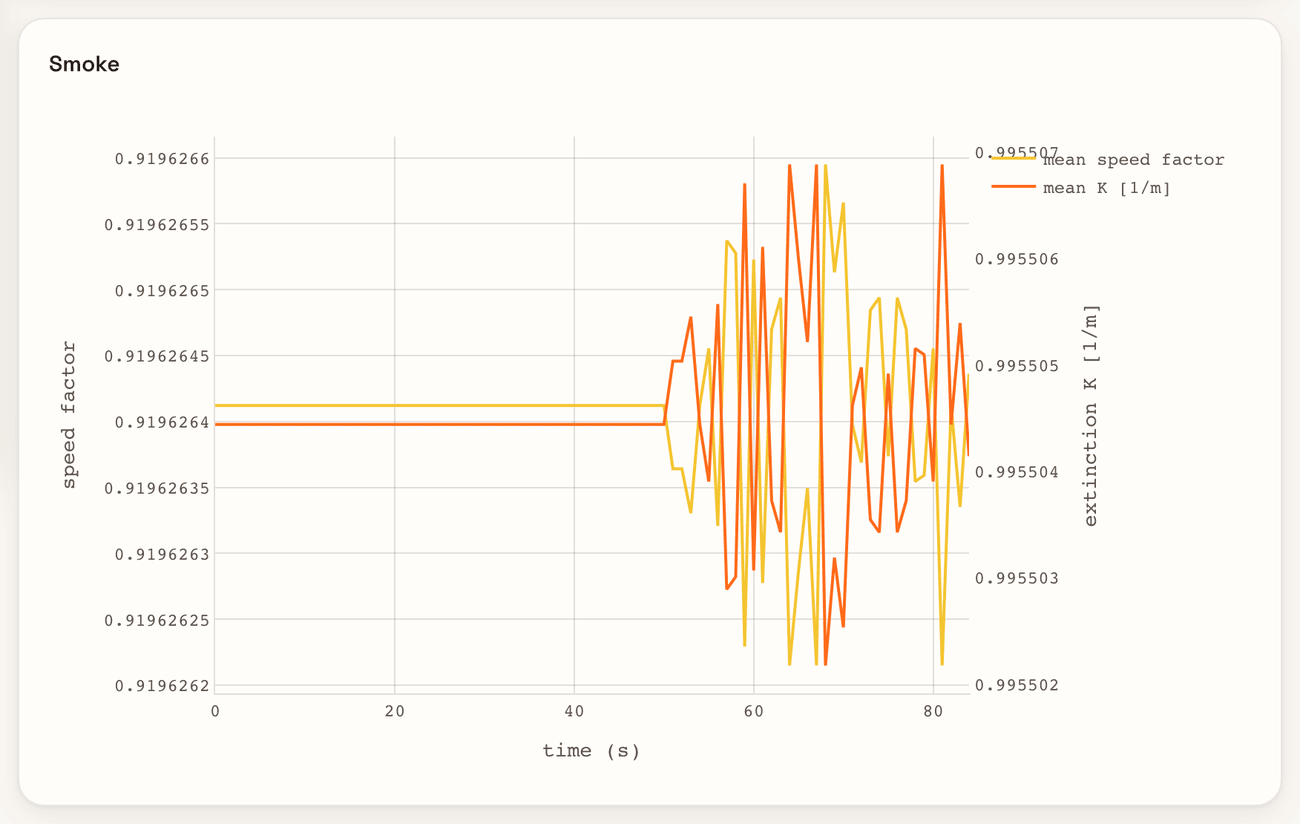
The Smoke chart below the replay plots, against simulated time from 0 to the end of the run, the mean speed factor (solid, left axis, 0 to 1) and the mean extinction coefficient K (dashed, right axis, from 0 to 1.1 times the highest mean K, and at least to 1 1/m). The mean is over the agents still in the simulation and not incapacitated, at each smoke update, so the series ends when no such agent is left. The line under the chart gives both ranges, the time span and the number of smoke updates. It adds a sentence when the series ends more than one update before the run, and when samples outside the FDS domain, taken as ambient air, enter the mean (#594). Cognitive map growth is listed under Not shown: no agent’s cognitive map grows in this one-agent corridor.
Keep the run as a script
Click Show Python for this run in the results header to get this run as a standalone Python script. Show equivalent Python, in the Parameters header, previews the current form settings instead. See Show the run as Python.
The form
The form is built from the run.py parser, so every option has a field.
Choice fields with no parser default show “default”: for heat_clothing that
means clothed, ISO 13571 Eq. (9), and a blank heat_fed_threshold follows
fed_threshold
(#311). The fields are grouped:
| Group | Fields |
|---|---|
| Core | scenario (pick or upload), seed; a blank seed uses the scenario’s baseSeed, as run.py does, and 42 if the scenario sets none (Usage) |
| Smoke | fds_dir (with a folder browser), constant_extinction, smoke_update_interval, smoke_slice_height |
| FED & Tenability | disable_tenability, incapacitation_mode, susceptibility_sigma, enable_fic_speed, fic_alpha, fic_min_factor, fed_threshold, o2_threshold_percent, enable_heat_fed, heat_incapacitation_mode, heat_susceptibility_sigma, heat_clothing, heat_fed_threshold |
| Rerouting | enable_rerouting, reroute_interval |
| Visibility | vis_cache; blank means no cache |
| Output files | Output folder; the SQLite with its run manifest, the five CSVs and the scenario bundle (<run folder>/bundle) are written to the run’s folder (see Output folders) |
| Other (collapsed) | every remaining option: clear_air_visibility, no_visibility, vis_cell_size, max_sign_distance, and the heat options heat_endpoint, heat_fed_method, heat_emissivity, heat_convective_coefficient, heat_skin_temperature, heat_radiant_source, heat_u_factor, heat_regime, heat_layer_height, heat_view_factor, heat_layer_emissivity |
Four run.py options have no field: --print-summary, --export-only,
--inspect-fds and --cleanup. Options with a fixed set of values are
dropdowns. The option meanings and defaults are on Usage.
The flags under “Other” are not yet next to the group they belong to (#311, #270).
Runs
The GUI calls the same run_scenario() as the command line, through the same
option builder (build_run_kwargs in pyfds_evac/core/run_config.py), so a
run configured in the browser gets the same options as the equivalent
run.py command. Invalid combinations (for example --vis-cache with rerouting off)
are rejected when the form is submitted, with the same message as run.py,
in the alert above the results area.
One run is active at a time. It runs on a background thread and streams its progress to the page. Run scenario and Results only stay locked while a run is active or cancelling. Cancel run stops the run at its next step.
Run states
When a run ends, the panel shows one of these states, each with a header that names the run and its own buttons:
| State | Shown when | Buttons |
|---|---|---|
| Results | the run finished and its results are displayed | Show Python for this run, Clear results |
| Failed | the run raised an error; the message comes first | Show configuration of this run, Clear |
| Cancelled | you cancelled the run; no results were produced | Show configuration of this run, Clear |
| Results not displayed | the run finished, but its results view could not be built | Show Python for this run, Clear |
| Ended | another run started, possibly in another window | Show current run |
A cancelled run’s message gives the simulated time of the last progress sample, “Run #N was cancelled at sim t s.”, or says that the run was cancelled before the first progress sample.
Clear results asks for confirmation first: “Clear the results of run #N from this view? The files on disk are kept.” Clear on a failed or cancelled run does not ask. A reload of the page shows the state the server holds, so results survive a refresh. The form itself returns to its defaults, so the Settings changed banner appears until you set the run’s settings again.
The outcome line comes from the run’s status, not from whether the run raised an error. It reads “Complete: all agents evacuated” when every agent has entered and left, and “Incomplete: time limit reached, k agents inside” when the time limit stopped the run first. When flow agents were still to enter, cut off by the time limit or without a free position before their flow window closed, it adds “, m not spawned”, a Not spawned tile appears, and the Evacuated tile reads “e of n that entered”, where n counts the agents that entered (#279). A run whose building emptied after its flow windows closed, with flow agents not spawned, ends then and reads “Incomplete: flow windows closed, m not spawned”, with its end time under “Simulated time”; the Not spawned tile and the “e of n that entered” Evacuated tile appear as above (#742). A run that ended with only incapacitated agents inside and no flow window open reads “Incomplete: all mobile agents left, j incapacitated inside[, m not spawned]”, with its end time under “Simulated time”; the Incapacitated tile gives j (#141). The Incapacitated tile is shown on every finished run; see Results.
Settings changed
After a run, editing the form so that it would configure a different run shows a banner: “Settings changed since run #N. The results below show that run’s settings, not the form. Run again to get results for the current settings.” The results header gets a Previous settings tag. If the edited form is invalid, the banner says that the settings cannot currently be run, and why. The comparison uses the same resolution as a submitted run and leaves the output paths out. Restoring the settings removes the banner.
Output folders
Each run writes into a folder of its own, so no run overwrites another:
- Output folder blank (the default): the folder is derived as
<results root>/<scenario>/<mode>/seed<seed>/<start time>, where mode is the incapacitation mode, seed the seed the run uses, and start time the run’s UTC start time, for example20260929T181031Z. - Output folder typed: the run writes into
<typed folder>/<start time>. While a folder is typed, a note under the box shows the resolved path: “Each run writes into folder/<start time>/”. A relative folder is taken under the results root.
The results root is the folder in the environment variable
PYFDS_EVAC_RESULTS_DIR when it is set, and otherwise the results folder of
Where the GUI reads and writes. If a run’s folder
already exists, -2, -3, … is added to its name.
Results
- Summary: the outcome in words; tiles for time, evacuated, remaining, incapacitated, not spawned (only when flow agents were still to enter) and seed used; the peak gas and heat FED, each when that model ran; and the run’s warnings.
- Incapacitated: the number of agents that reached the incapacitation threshold of gas or heat FED (“0 agents” included) when the run modelled incapacitation, and “not modelled in this run” otherwise. A run models it when tenability is on with gas incapacitation and a gas FED model, or with heat incapacitation and a heat FED model. It does not without a dose model, when FED was disabled because CO, CO₂ or O₂ is missing, with Disable tenability, or with Smoke blind. In the last two cases the peak FED can still be shown although no agent is stopped. The count is shown on its own, not as part of Remaining (#593).
- Charts: smoke over time and the growth of the cognitive maps. Charts without data are listed under Not shown. FED is shown live during a run.
- Trajectory replay: agents move between the stored trajectory samples,
coloured by cumulative gas FED or by assigned exit, with play, pause, a
scrub bar, speeds of 1×, 2×, 5×, 10× and 50× or a custom speed, and
scroll-to-zoom and drag-to-pan. When the run has an
fds_dir, the horizontal extinction slice the engine samples is drawn under the agents in fixed K bins, as a smoke layer that can be switched off; see Look at the results. The result does not record the engine’s slice height yet, so the replay selects the slice again with the same rule (#592). Without a FED model, for example when the FDS output has no CO, CO₂ or O₂ slices, agents are coloured by exit and the FED/exit switch is not shown. The replay colours by gas FED only, not by heat FED (#232). - FED panel: under the replay, when the run has a FED model. It shows
the highest gas FED of any agent on one continuous scale that runs to 1, or
to the run’s FED threshold if that is higher. A marker labelled
“threshold” (deterministic mode) or “median threshold” (probabilistic
mode) sits at the run’s
fed_threshold, read from the run’s own settings, not the current form. Without a recorded threshold there is no marker.
The files the run writes are described on Outputs.
Show the run as Python
The GUI can write any configuration as a standalone Python script. Use it to rerun a GUI run on another machine or to start a batch study from it, with the settings and the seed traceable to the run. The script reproduces a configuration; it does not validate the model. The GUI never executes it.
Two buttons open the code:
- Show equivalent Python, in the Parameters header: a preview of the current form settings. It is not a run.
- Show Python for this run, in the results header: the code of the most recent run, built from the settings frozen when it was submitted. On a failed or cancelled run the same button reads Show configuration of this run.
Both open a dialog with Copy and Download .py.
Save a run and run it again
In the scenario picker, choose the plain
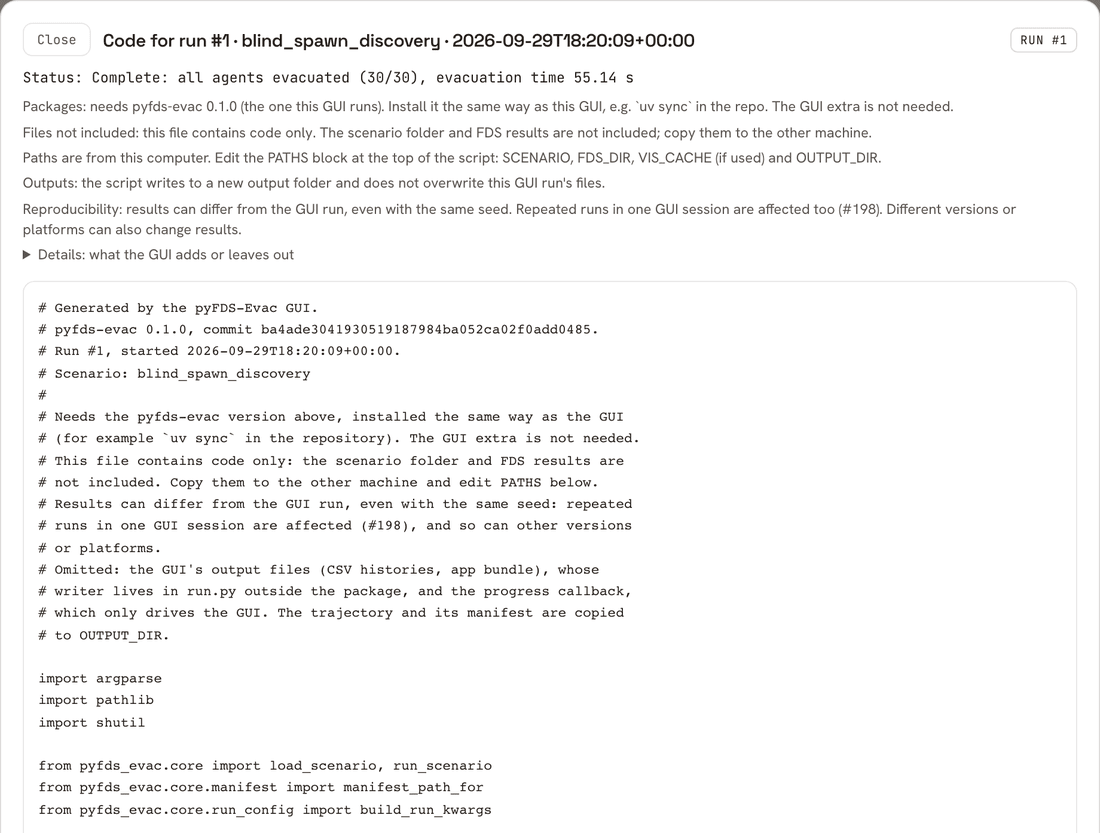
blind_spawn_discoveryentry, not one of its/ config_….jsonvariants, and run it with the default settings.When the run has finished, click Show Python for this run. The dialog is titled “Code for run #1 · blind_spawn_discovery · start time” and reports “Status: Incomplete: time limit reached, 2 agents inside, simulated time 300.0 s, incapacitation not modelled”.
Click Download .py. The file is named after the scenario, the run number and the run’s UTC start time, for example
pyfds_evac_blind_spawn_discovery_run1_20260929T182009Z.py.Run it with the pyfds-evac version named in its header, installed the same way as the GUI, for example the repository’s
uvenvironment. Theguiextra is not needed. From the folder that holds the script:uv run --project /path/to/pyFDS-Evac python pyfds_evac_blind_spawn_discovery_run1_20260929T182009Z.py
On another machine, copy the scenario folder and the FDS results as well: the
script contains code only. Then edit the PATHS block at the top of the
script. A scenario uploaded into the GUI lives in the GUI’s own uploads folder
and will not exist elsewhere.
What to keep in mind
- The snapshot stores settings, not inputs. It keeps the option values and the scenario path, not the scenario JSON, the FDS results or the visibility cache. The script reloads them from disk, so after an edit to the scenario or the FDS folder the code for run #N no longer reproduces run #N.
- Results can differ from the GUI run, even with the same seed, with other versions or on other platforms.
- Outputs. The script writes to a new
OUTPUT_DIRand does not overwrite the GUI run’s files. It does read the sameVIS_CACHEfile, and the cache key includes the resolved FDS directory (_make_metainpyfds_evac/core/visibility.py), so a changedFDS_DIRor setting makes the script rebuild the map and rewrite that file. - Fewer output files. The script writes the trajectory SQLite and its manifest, not the GUI’s CSV histories or app bundle (#328).
Preview and run code
Preview. The form is resolved exactly as a submitted run would be. If the
settings are invalid, the dialog shows the same error message as run.py,
with a Details disclosure, and no code; Copy and Download .py are
disabled. The file is named pyfds_evac_<scenario>_preview.py.
Run code. It is built only from the run’s frozen snapshot, never from the live form. The status line uses the wording of the results view, with times to one decimal:
- “Complete: all agents evacuated (e of n), evacuation time t s, …”;
- “Incomplete: time limit reached, k agents inside[, m not spawned], simulated time t s, …”;
- “Incomplete: flow windows closed, m not spawned, simulated time t s, …”;
- “Incomplete: all mobile agents left, j incapacitated inside[, m not spawned], simulated time t s, …”;
- failed, cancelled, or not recorded.
In the first four, “…” is “j incapacitated” when the run modelled
incapacitation and “incapacitation not modelled” otherwise. The file is named
pyfds_evac_<scenario>_run<N>_<start time>.py, with the run’s UTC start
time such as 20260929T182009Z.
- Failed and cancelled runs still have code. The dialog is titled “Configuration of the failed run #N” or “Configuration of the cancelled run #N”; the button that opens it reads Show configuration of this run. The code stays until you click Clear.
- Only the most recent run has code. There is none while a run is in progress. After Clear (or Clear results for a finished run) or a new run, the old run’s code is gone and its button disappears. A button left over in another tab opens a dialog titled “No recorded run”. Run numbers restart at 1 with every GUI session, so file and folder names carry the start time as well.
- Changed form. If the current form no longer resolves to the run’s options, a note says that the code reproduces the run, not the form, and suggests Preview. Output paths are left out of this comparison.
What the script contains
The script has six parts, in this order. The excerpt is the run from Save a run and run it again, trimmed where marked.
- Header. The pyfds-evac version and git commit, with “(with uncommitted changes)” when the checkout was dirty; the commit alone then does not identify the code. Then “Run #N, started UTC time” or “Preview”, the scenario name, and the notices shown in the dialog.
PATHS.SCENARIO,FDS_DIR,VIS_CACHEandREPLAY_EXITSare absolute paths on the machine that ran the GUI.OUTPUT_DIRis a new relative folder,pyfds_evac_<scenario>_run<N>_<start time>_outputorpyfds_evac_<scenario>_preview_output, resolved against the folder the script is launched from.OPTIONS. Every resolved option, one per line, exactly as the GUI hands it tobuild_run_kwargs.- The run. A
Namespaceis rebuilt fromOPTIONSandPATHS; the script then callsload_scenario,build_run_kwargs(pyfds_evac/core/run_config.py) andrun_scenario. There is no second option mapping, so the script cannot drift from the GUI. - After the run. A finished or stopped message. The trajectory SQLite is
copied to
OUTPUT_DIR/trajectory.sqlitewith its manifest, andresult.cleanup()removes the temporary copiesrun_scenariowrote. - CLI-only keys.
cleanup,export_only,inspect_fdsandprint_summaryappear inOPTIONS, butbuild_run_kwargsignores them.'cleanup': Falsenext toresult.cleanup()is expected, not a bug.
# Generated by the pyFDS-Evac GUI.
# pyfds-evac 0.1.0, commit ba4ade3041930519187984ba052ca02f0add0485.
# Run #1, started 2026-09-29T18:20:09+00:00.
# Scenario: blind_spawn_discovery
# ... notices ...

import argparse
import pathlib
import shutil
import sys

from pyfds_evac.core import load_scenario, run_scenario
from pyfds_evac.core.manifest import manifest_path_for
from pyfds_evac.core.run_config import build_run_kwargs

# PATHS: from the computer that made this script; edit on another machine.
SCENARIO = '/.../pyFDS-Evac/assets/blind_spawn_discovery'  # path shortened
FDS_DIR = None
VIS_CACHE = None
REPLAY_EXITS = None
# A new folder: the script never writes into a front end's run folder.
OUTPUT_DIR = pathlib.Path('pyfds_evac_blind_spawn_discovery_run1_20260929T182009Z_output')

# Settings: the resolved configuration passed to build_run_kwargs.
OPTIONS = {
    'seed': 1301,  # seed used by run #1
    'cleanup': False,
    'clear_air_visibility': False,
    'collect_route_cost_history': True,
    # ... remaining options, sorted by name ...
    'output_sqlite': None,
    'print_summary': False,
    # ...
}

opts = argparse.Namespace(
    **OPTIONS,
    scenario=SCENARIO,
    fds_dir=FDS_DIR,
    vis_cache=VIS_CACHE,
    replay_exits=REPLAY_EXITS,
)

scenario = load_scenario(SCENARIO)
run_kwargs = build_run_kwargs(scenario, opts, log=print)
result = run_scenario(scenario, **run_kwargs)

# ... finished / stopped message, then copy the trajectory SQLite
# and its manifest to OUTPUT_DIR ...
result.cleanup()  # remove the temporary copies run_scenario wrote
if not result.success:
    sys.exit(2)
How the seed is written
The seed line in OPTIONS carries a comment that says where its value
comes from. None means the scenario’s baseSeed, which is 42 when the
scenario sets none (Usage).
- Run code, the run reported the seed expected at submission: that seed,
with
# seed used by run #N. - Run code, seed box left blank and no seed confirmed (for example a
failed or cancelled run):
None, with# seed not recorded for this run; None = the scenario's baseSeed. - Run code, seed typed in but not confirmed (for example a failed or
cancelled run): the submitted value, with
# seed submitted; the seed used was not recorded. - Preview, seed box blank:
None, with# None = the scenario's baseSeed (<value>), for example(1301)forblind_spawn_discovery.
What the script leaves out, and why
- The GUI’s CSV histories and app bundle. The smoke, FED, route,
route-cost and exit histories and the bundle are written by
apply_outputsinpyfds_evac.core.run_outputs, which the exported script does not call yet. Their keys (output_smoke_history,output_fed_history,output_route_history,output_route_cost_history,output_exit_history,output_sqlite,export_app_bundle) are set toNone(#328). Route-cost history collection stays on (collect_route_cost_history), as in the GUI. - The GUI’s progress callback. It only drives the GUI’s live view. The model’s own progress lines are still printed.
Evidence: the equivalence test
test_exported_script_reproduces_the_gui_run in
tests/test_webapp.py runs a GUI run and its exported script in two fresh
interpreters, so each is the first run of its process. For one scenario,
blind_spawn_discovery (baseSeed 1301), the two match on total, evacuated
and remaining agents, evacuation time and seed. It covers that scenario only.